Why 'Not Found' Errors Lie: Python, Node, Docker and Windows
Updated 2026-09-23
The error is lying to you
Four errors, from four unrelated tools:
ModuleNotFoundError: No module named 'requests'
Error: Cannot find module 'express'
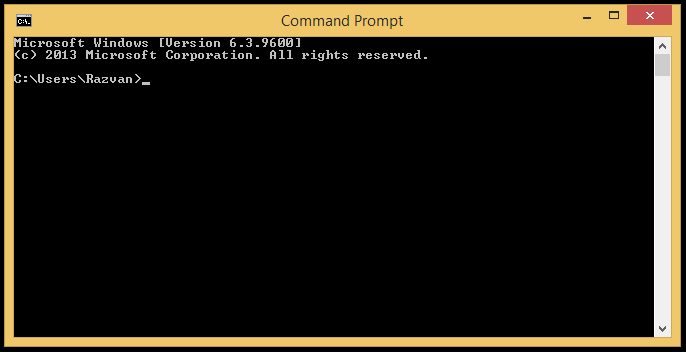
'python' is not recognized as an internal or external command
Error response from daemon: manifest unknown
Each one claims something does not exist. In the overwhelming majority of cases, the thing exists. You installed it. You can see it on disk.
What is actually broken is the gap between which resolver is asking and where that resolver is looking. Every one of these tools has a search procedure, and every one of them will tell you what it found if you ask it directly rather than guessing.
That is the whole skill. The rest of this guide is how to ask, per tool.
The one move that solves most of them
Before touching anything, answer two questions:
- Which program is actually running? Not which one you installed. Which one is on the other end of the command you typed.
- Where is it looking? Every resolver has a search path you can print.
The bug lives between those two answers. People skip straight to reinstalling, which occasionally works by accident and teaches you nothing, because the second install landed somewhere the resolver happens to look.
Python: ModuleNotFoundError
The single most common cause is that pip and python are different installations. You install with one, run with another, and each is correct about its own world.
Make them identify themselves:
python -c "import sys; print(sys.executable)"
python -m pip --version
If pip --version reports a different path from python -m pip --version,
that is your bug, and it is not subtle once you see it.
The fix that prevents it permanently: stop typing pip. Type
python -m pip instead. That form runs pip using the interpreter you just
named, so the two can never diverge.
python -m pip install requestsMake the resolver show its work. When the package really is installed for the right interpreter and the import still fails:
python -c "import sys; print('\n'.join(sys.path))"The shadowing trap. Python searches the current directory first. A file
named random.py, email.py, json.py or types.py in your project will be
imported instead of the standard library module of that name, and the error
often surfaces somewhere else entirely, in a library that imported it
innocently. A stale __pycache__ directory can keep this alive after you
rename the file. If the error names a module you never installed because it
ships with Python, look for a file of that name next to your script.
Virtual environments. A venv is a separate sys.path. Packages installed
outside it are not visible inside it and the reverse is also true.
python -m venv .venv

# Windows
.venv\Scripts\activate

# macOS and Linux
source .venv/bin/activate
Once activated, python and pip both point inside the environment. If your
prompt shows the environment name but imports still fail, you activated one
environment and installed into another.
On Windows, list every interpreter you have
py -0The output is frequently longer than people expect, and that is the answer.
Node: Cannot find module
Node resolves a bare name like express by walking up from the importing
file, checking node_modules at each level until it reaches the filesystem
root. It resolves a relative name like ./config against the directory of the
file doing the importing, not your current working directory.
Those are two different failure modes and the same error message.
Ask Node what it resolved
node -e "console.log(require.resolve('express'))"A path means the package is found and your problem is elsewhere, usually a version or an entry point. An error means it genuinely is not on the search path from where you are standing.
The relative import case. require('./config') fails when there is no
config.js, no config.json, and no config/index.js beside the file.
Moving a file to another directory breaks its relative imports without
touching a single character in them, which is why this often appears in a
commit that “only moved files”.
Case sensitivity. require('./Config') resolving a file named config.js
works on macOS and Windows, whose default filesystems are case insensitive,
and fails on Linux. This is the classic “works locally, fails in CI” bug. If a
module resolves on your laptop and not in a container, check the capital
letters before anything else.
Monorepos and workspaces hoist dependencies to the root node_modules.
A package that works when run from the repository root can fail when run from
inside one workspace, or the reverse, depending on hoisting. Run
require.resolve from the directory that actually fails.
In Docker, the usual cause is copying node_modules in from the host.
Native modules are compiled for the host platform and will not load inside the
container. Install inside the image instead, and exclude the directory from the
build context:
COPY package.json package-lock.json ./
RUN npm ci
COPY . .
# .dockerignore
node_modulesUsing npm ci rather than npm install also makes the build reproducible,
since it installs exactly what the lockfile specifies and fails loudly if the
lockfile and manifest disagree.
Windows: command is not recognized
Windows searches the directories listed in PATH, in order. The command
exists; the directory containing it is not in that list, or your shell has an
outdated copy of it.
Find out whether Windows can see it at all
where pythonGet-Command pythonIf it was working five minutes ago and you just edited PATH: environment variables are inherited when a process starts. Every already-open terminal, editor and IDE is still holding the old value. Open a new one. This accounts for a large share of these reports.
The Windows 11 Python trap. Windows ships an “app execution alias” for
python that opens the Microsoft Store rather than running anything. So
python appears to do nothing, or takes you shopping, even though Python is
installed. Turn it off under Settings, Apps, Advanced app settings, App
execution aliases, and switch off the python.exe and python3.exe entries.
Do not fix your PATH with setx
You will find this advice everywhere, and it is the most destructive tip in this entire category of article:
setx PATH "C:\Windows\System32;C:\Windows;..."Two things go wrong.
It overwrites rather than appends. Whatever you pass becomes the entire
value. People read their PATH with echo %PATH%, paste it back with an
addition, and do not realize that %PATH% is the system and user values
already merged. The merged value gets written into the user variable, so system
entries are now duplicated, and any later change to the system PATH is masked.
setx truncates at 1024 characters. On a development machine, PATH is
routinely longer than that. The command reports success and silently discards
the overflow, which is how people lose entries they never typed and cannot
work out what broke.
Use the graphical editor instead: press the Windows key, type “environment variables”, and edit the list as rows. It appends properly and has no length limit.
Or from PowerShell, which also has no 1024 character limit:
$old = [Environment]::GetEnvironmentVariable('Path', 'User')
[Environment]::SetEnvironmentVariable('Path', "$old;C:\your\new\path", 'User')
Read the current value, append to it, write it back. Never type a PATH from memory.
Docker: image or manifest not found
Docker’s message is unusually misleading here, because it conflates several genuinely different situations.
“manifest unknown” almost always means the tag is wrong, not the image.
nginx:latest exists and nginx:lastest does not, and neither does the
version number you assumed was published. Check before pulling:
docker manifest inspect nginx:1.27Architecture mismatch. On an Apple Silicon Mac or an ARM server, pulling an
image published only for linux/amd64 fails with a “no matching manifest”
variant of this error. The image is real and simply was not built for your
processor. Either find a multi-architecture tag or ask for the other one
explicitly:
docker pull --platform linux/amd64 someimage:tagThat runs under emulation, which works but is slower.
Private registries report “not found” instead of “access denied”. This is deliberate. Telling an unauthenticated stranger that a repository exists is itself a disclosure, so registries answer as though it does not. If you are certain the image exists and you are certain of the tag, you are probably not logged in:
docker login registry.example.comThis one wastes a lot of time because the message points away from the real cause. When an image “does not exist” but a colleague can pull it, it is authentication. See our companion guide on why permission errors rarely say so.
The implied registry. A single word like myimage expands to
docker.io/library/myimage, the official namespace. Your own image needs the
full path:
docker pull ghcr.io/yourorg/myimage:tagThe pattern, restated
The same three steps work for all four tools:
- Make the resolver identify itself.
sys.executable,where,Get-Command,docker manifest inspect. - Make it print its search path.
sys.path,require.resolve,PATH, the registry and tag it actually expanded to. - Compare that against where the thing really is. The bug is in the gap, every time.
Reinstalling skips all three. Sometimes the second install lands somewhere the resolver looks and the problem disappears, which feels like a fix and is actually a coincidence you will repeat in a month.
For a structured approach to this on Linux specifically, see our how to troubleshoot a Linux box without guessing.
☕ Coffee Corner
Compiling, deploying, or waiting on a render? Here's what to brew while you wait.


🏠 Smart Home Picks
Same hobbyist care applied to your network and your front door.