How to Troubleshoot a Linux Box Without Guessing
Updated 2026-09-24
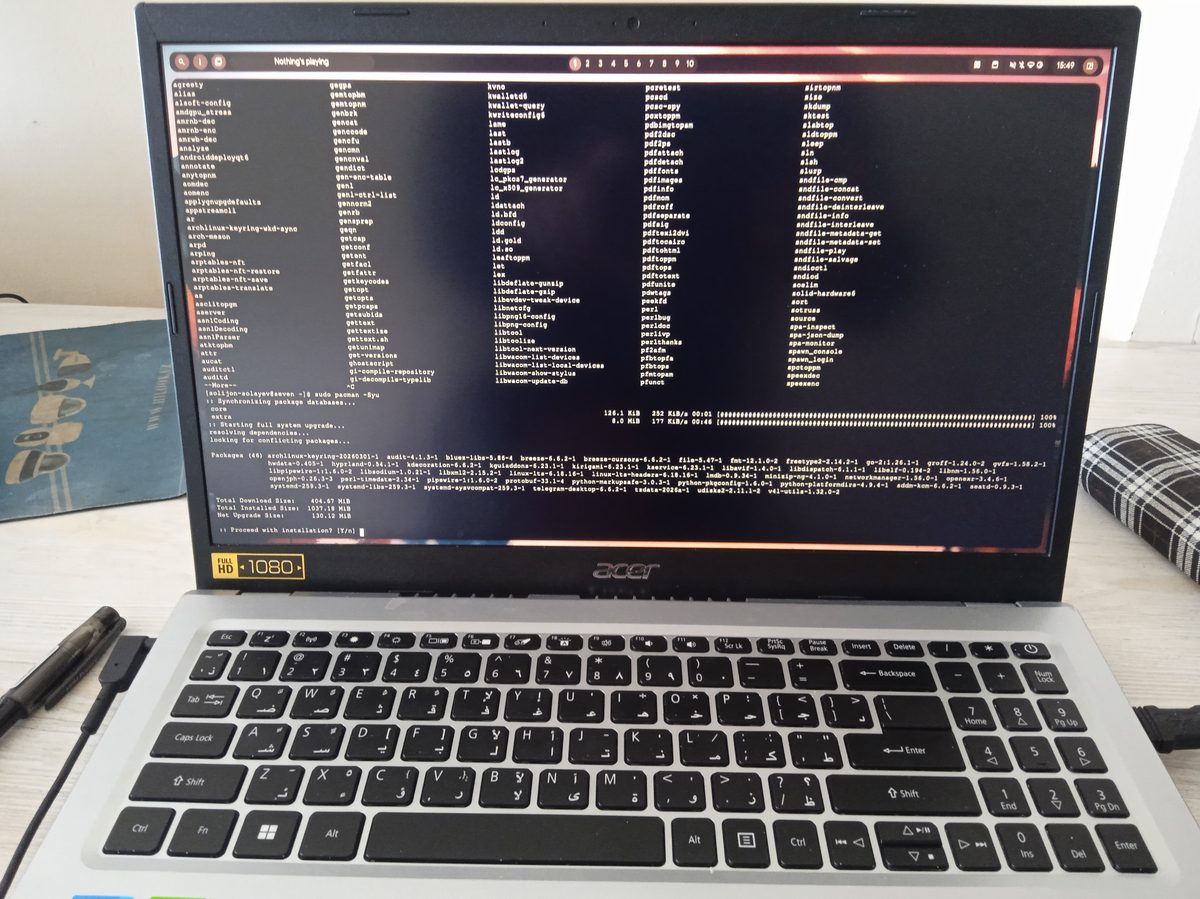
The difference between someone who fixes Linux problems quickly and someone who doesn’t is rarely how many commands they know. It’s that they resist the urge to start changing things before they know what’s broken.
The method below isn’t clever. It’s just the discipline of doing four things in order, and the reason it’s worth writing down is that under pressure almost everyone skips straight to step three.
Define what’s actually broken
“The web server is down” is not a problem statement. “Nginx returns 502 starting around midnight, and a backup job runs at midnight” is one: it contains a hypothesis you can test in a minute.
Get specific about three things before touching anything: the exact error text, verbatim rather than paraphrased; when it started, as precisely as you can establish; and what changed near that time. Most incidents are caused by a change, and the change is usually recent, which is why the timestamp is worth more than it looks.
If it broke at 2am and nobody was working at 2am, something scheduled did it. That single observation resolves a surprising share of outages.
Read the logs before forming a theory
The order matters: theory first means you’ll go looking for evidence that confirms it.
systemctl status <service>
journalctl -u <service> -n 50
journalctl -b | tail -50     # this boot, for boot problems
dmesg | tail -50             # kernel: OOM kills, hardware, filesystems
df -h                        # full disk causes bizarre unrelated symptoms
A caveat that catches people: logs are not complete. A process killed by the
out-of-memory killer often dies before writing anything, so an empty
application log doesn’t mean nothing happened: it means look at dmesg and
at resource usage instead.
Change one thing, then test
This is the step where progress gets destroyed. Editing the config, fixing permissions and restarting the service together might well fix it, and you’ll have no idea which one mattered. When it recurs next month you’re starting from nothing.
One change, one test, and write down what you did.
Verify, then prevent the recurrence
Confirm the fix from the outside (actually load the page, actually open the
SSH session) rather than concluding from a green systemctl status that the
user’s problem is solved.
Then deal with the cause. If the disk filled, configure log rotation. If a cron job did it, fix the cron job. A fix that restores service without addressing why it broke has scheduled you a repeat.
Three worked examples
A system that won’t boot. Hangs at an emergency shell after a kernel
update. journalctl -b | tail -50 reports it can’t find the swap partition
at /dev/sda3. lsblk shows swap now on /dev/sda4. Device names are not
stable across kernel updates. The fix is /etc/fstab, using the UUID from
blkid rather than the device path, which is what should have been there
originally.
A container that exits immediately. Worked yesterday, no obvious error.
docker logs <id> shows “Permission denied: /app/data/file.txt”. Listing
the directory inside the container shows it owned by root while the process
runs as an unprivileged user: a mounted volume carrying the host’s
ownership. Fix the ownership on the mount, not inside the container, or it
comes back on the next start.
Nginx returning 502. Working an hour ago. curl http://localhost:8080
against the upstream fails, so Nginx is reporting honestly: the backend is
gone. ps aux confirms the app isn’t running, and df -h shows the disk at
98%, filled by logs. Clear the space, restart the app, reload Nginx. The
actual fix is log rotation; restarting the app alone buys you a day.
Note what those have in common. In all three the visible symptom is a distance away from the cause, and in all three the log line that identified it took under a minute to find.
The mistakes worth naming
Restarting before investigating is the big one. It often works, which is exactly the problem: you’ve traded a diagnosis for a temporary reprieve, and the next occurrence starts from zero.
Changing several things at once destroys your ability to learn from the fix.
Ignoring timestamps throws away the best clue you have. Assuming the logs
are complete leads you to conclude nothing happened when the evidence is in
dmesg. And not writing down what you did guarantees someone (probably you)
solves this again from scratch.
Preventing the next one
Proactive monitoring earns its keep, and it doesn’t need to be elaborate:
alerts on disk usage, memory pressure and failed units catch most of what
actually takes systems down. Configure logrotate before a full disk
teaches you why. Keep config changes in version control so “what changed”
has an answer. Test that backups restore, not just that they run.
Working on containers rather than the host? Container troubleshooting covers the failure modes specific to those. For a CPU pinned at 100%, high CPU diagnosis goes deeper than this does.
☕ Coffee Corner
Compiling, deploying, or waiting on a render? Here's what to brew while you wait.

🏠 Smart Home Picks
Same hobbyist care applied to your network and your front door.