How Many FPS Will You Get? A Super Simple Guide to Graphics Settings
Updated 2026-08-31
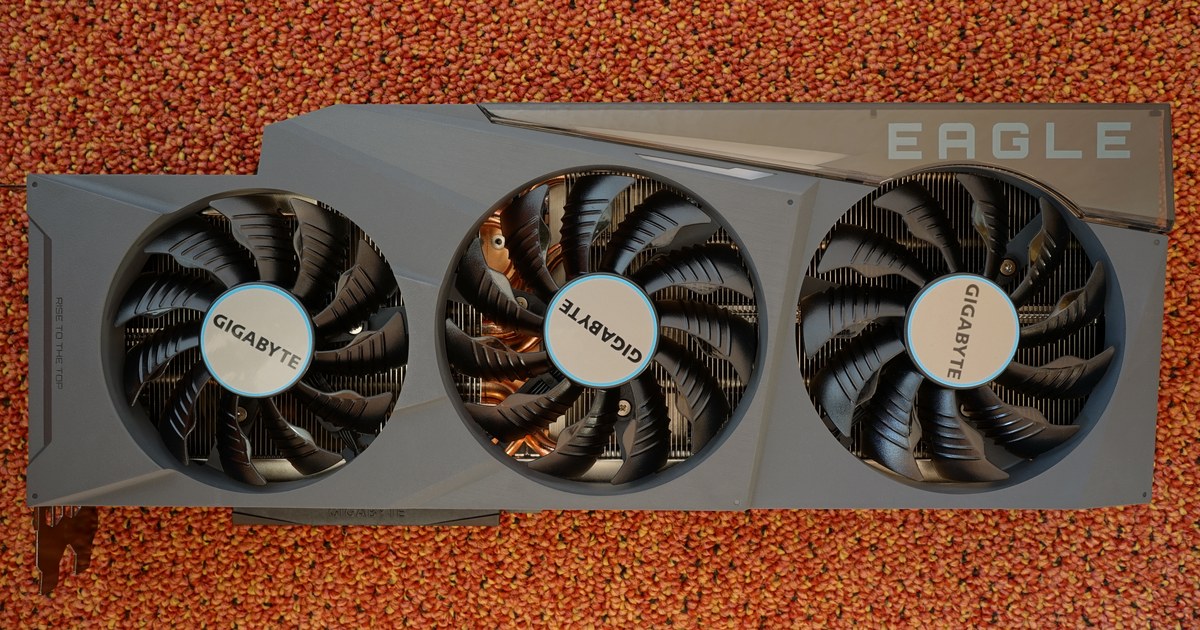
FPS just means “how many pictures your screen shows you every second.” More FPS feels smoother. A bigger, more expensive graphics card usually means more FPS — but not always, and not forever, because sometimes something else in your computer is what’s actually slowing things down. This guide explains all of it in plain words, with real numbers from real tests, not guesses.
What Even Is FPS?
FPS stands for Frames Per Second. A “frame” is just one picture. Your game isn’t really moving — it’s showing you a new picture so fast, over and over, that it looks like it’s moving. Like a flip book! If you flip the pages slowly, it looks choppy. If you flip them fast, it looks smooth.
- 30 FPS = 30 new pictures every second. Playable, but you can feel it’s not silky smooth.
- 60 FPS = 60 new pictures every second. This is the classic “feels good” number most people are happy with.
- 120+ FPS = Very smooth. Mostly matters if you have a screen that can actually show that many pictures per second (more on that below) and you play fast, competitive games.
More FPS is generally better, the same way more pages in a flip book (flipped at the same speed) makes the motion look smoother.
What Are “Graphics Settings” (Low, Medium, High, Ultra)?
Every game lets you pick how much detail it bothers to draw. Think of it like drawing a picture of a forest:
- Low: A few green blobs for trees. Fast to draw, doesn’t look like much.
- Medium: Actual tree shapes, some shadows.
- High: Individual leaves, better lighting, reflections in puddles.
- Ultra: Every leaf, realistic light bouncing around, tiny details you’d only notice if you stopped to look.
Drawing the Ultra version takes your graphics card a lot more work than drawing the Low version — so Low settings almost always mean more FPS, and Ultra settings mean less FPS, on the exact same graphics card. You’re trading “looks amazing” for “runs faster.”
What Is “Resolution” (1080p, 1440p, 4K)?
Your screen is made of millions of tiny dots called pixels, like a giant mosaic made of tiny colored tiles. Resolution is just how many tiles there are:
- 1080p ≈ 2 million tiny dots
- 1440p ≈ 3.7 million tiny dots
- 4K ≈ 8 million tiny dots
More dots means a sharper, more detailed picture — but your graphics card has to fill in every single dot, every single frame. Filling in 8 million dots (4K) is a lot more work than filling in 2 million (1080p), so the same graphics card gets fewer FPS at 4K than it does at 1080p. This is the single biggest reason “what resolution do you play at?” is the first question anyone should ask before recommending a graphics card.
Real Examples: What Actually Happens (Real Numbers, Real Tests)
Instead of guessing, here’s what independent testing lab GamersNexus actually measured. Both games below were tested on the same system (an Intel Core i7-12700KF), so the graphics cards are being compared fairly against each other.
Baldur’s Gate 3, at 4K with everything on Ultra
- The RX 7800 XT averaged 63 FPS.
- The RTX 4070 performed about the same as the RX 7800 XT here.
- Here’s the surprising part: the RTX 4090 — a graphics card that costs several times more — landed at roughly 90-95 FPS, which sounds like a lot more, but it wasn’t because the RTX 4090 is that much faster in this game. It was because something else in the computer became the limit before the graphics card could show what it can really do. (More on that in the next section — it’s important!)
Starfield, at 4K with Ultra settings and no upscaling tricks turned on
- The RTX 4090 averaged 68 FPS.
- The RTX 4080 (a step down) averaged 58 FPS.
- Cards further down the lineup, like the RTX 4060, were tested at 1080p instead of 4K, because that’s the resolution they’re actually built for — there, it landed in a similar tier to AMD’s RX 7600.
Notice something: the exact same graphics card gets a totally different FPS number depending on the game, the resolution, and the settings. There’s no single “this card gets X FPS” answer — it always depends on what you’re asking it to draw.
Sometimes a Bigger Graphics Card Doesn’t Even Help
This is the part almost nobody explains simply, and it’s the most useful thing in this whole guide.
Your computer has two main parts working together to show you a game: the graphics card (draws the picture) and the CPU (tells the graphics card what to draw, keeps track of the game world, the physics, the characters). If the CPU can’t keep up with feeding instructions fast enough, it doesn’t matter how fast your graphics card is — it’s sitting there waiting, like a chef who cooks incredibly fast but is waiting on a slow waiter to bring in the orders.
That’s exactly what happened in the Baldur’s Gate 3 example above: the RTX 4090, RTX 4080, and even AMD’s RX 7900 XTX all landed at roughly the same 90-95 FPS in that test, even though the RTX 4090 is a noticeably more powerful graphics card. The CPU had become the bottleneck — the slow waiter — and no amount of extra graphics-card power could get past that limit.
How to tell which one is your limit: if you upgrade your graphics card and your FPS barely moves, your CPU is probably the real limit, not the graphics card. We wrote a full walkthrough of exactly this situation in The GPU Upgrade That Turned Into a New CPU and Motherboard, including how to actually check which part is holding you back.
So How Do You Pick a Target?
You don’t need to memorize any of the numbers above. Just answer three simple questions:
- What resolution is your monitor? (1080p, 1440p, or 4K — check your monitor’s settings if you’re not sure.) This is the biggest factor.
- What FPS does your monitor actually support? A monitor that maxes out at 60Hz literally cannot show you more than 60 pictures per second, no matter how fast your graphics card is. Chasing 200 FPS on a 60Hz monitor doesn’t get you anything extra.
- What do you actually play? A fast-paced competitive shooter benefits from high FPS a lot more than a slow, story-driven game does. If you mostly play the second kind, smoother-but-fewer-frames at higher graphics settings is a perfectly reasonable trade.
Once you know those three things, you’re not guessing anymore — you’re matching a graphics card to what your own setup can actually use.
Sources
- GamersNexus: Baldur’s Gate 3 GPU Benchmarks & Comparison
- GamersNexus: Starfield GPU Benchmarks & Comparison
🛒 Buy the Gear in This Guide
 NVIDIA RTX 4070View on Amazon →NVIDIA RTX 4090View on Amazon →NVIDIA RTX 4060View on Amazon →AMD Radeon RX 7800 XTView on Amazon →
As an Amazon Associate we earn from qualifying purchases, at no extra cost to you. Prices and availability are shown on Amazon's own product page, not here, since they change constantly.
☕ Coffee Corner
Compiling, deploying, or waiting on a render? Here's what to brew while you wait.


🏠 Smart Home Picks
Same hobbyist care applied to your network and your front door.