How to Choose an SSD
Updated 2026-09-24
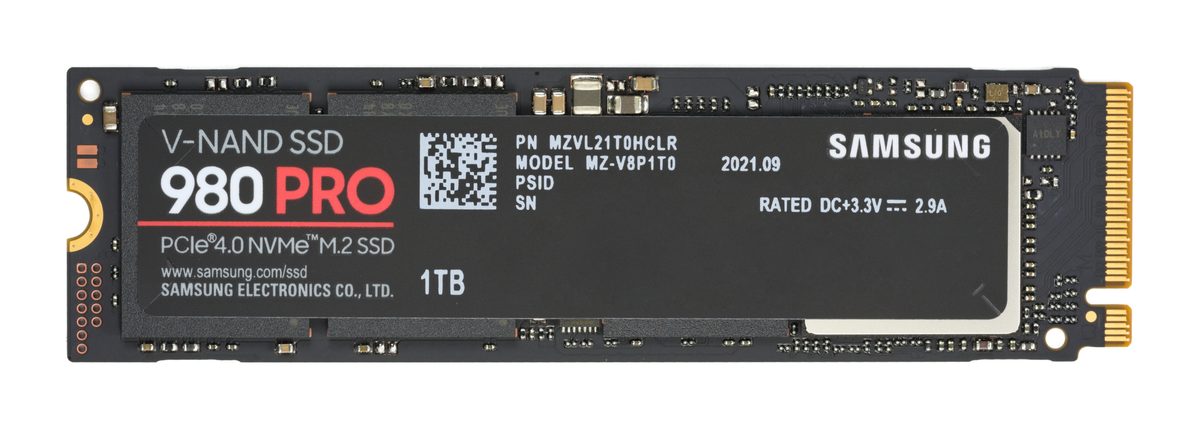
Storage is the component where the spec sheet is least connected to how the machine feels to use. Sequential read speed is the number printed on the box, and it is close to irrelevant for most of what a desktop actually does.
That single mismatch explains most bad SSD purchases, so it’s worth starting there.
Why the headline number misleads
The big figure on the packaging is sequential throughput: how fast the drive moves one enormous continuous file. Real systems mostly do the opposite thing. Booting, launching applications, loading a game and compiling code all generate many small reads scattered across the drive, and that work is governed by latency and random I/O rather than by peak sequential rate.
This is why a drive advertising twice the throughput of another usually does not feel twice as fast, or even noticeably faster. It’s also why the jump that genuinely does feel dramatic is the one people have already made: hard disk to any SSD at all. That change is enormous. Every change after it is smaller than the numbers imply.
NVMe or SATA
NVMe connects over PCIe lanes; SATA uses the older bus and is capped by it. Any current NVMe drive is far quicker on paper, and moderately quicker in ways you’d actually notice, mostly at boot and when moving large files.
Buy NVMe by default. It’s the standard, the price gap has largely closed at common capacities, and a modern motherboard has M.2 slots expecting it.
SATA still makes sense in two cases. The machine has no free M.2 slot, which is common in older desktops and laptops. There, a SATA SSD is the upgrade, and it’s a transformative one if it’s replacing a hard disk. Or you want cheap bulk capacity as a second drive for a game library or archive, where sequential speed is sufficient and cost per terabyte is what matters. Our Samsung 870 QVO review covers that second case specifically.
Gen4 or Gen5
Gen5 drives are faster in benchmarks. They also run hotter, draw more power, cost more, and frequently require a substantial heatsink to avoid throttling under sustained load.
For gaming and ordinary desktop work, Gen4 is the sensible choice and the difference is difficult to perceive. Game load times in particular are bounded by decompression and engine work long before they’re bounded by the drive. Buying Gen5 to load games faster is money spent on a bottleneck that isn’t yours.
Gen5 earns its price when you routinely move very large files: video workflows, large datasets, backing up or restoring hundreds of gigabytes at a time. That’s real, it’s just not most people.
Check the motherboard too. Gen5 in a Gen4 slot runs at Gen4 speed, and some boards share lanes between M.2 slots and SATA ports, disabling one when you populate the other. The manual’s block diagram is worth two minutes before you buy.
Capacity
Buy more than you think you need. This is the one place where spending generally pays off, because the alternative is the rolling admin of deciding what to delete.
There’s a performance reason as well. SSDs slow down as they approach full, because the controller has less free space to work with when writing. Leaving meaningful headroom keeps the drive behaving like the one you bought, so plan for the drive to be comfortably occupied rather than nearly full.
Capacity also interacts with endurance and speed: larger drives in the same family typically have higher write endurance and often better sustained write performance, because there’s more NAND to spread the work across.
TLC, QLC and DRAM
Three internal details that actually change the experience.
TLC versus QLC. QLC stores more bits per cell, which makes drives cheaper and larger. The tradeoffs are lower endurance and a sharper slowdown on long sustained writes once the drive’s fast cache is exhausted. For a bulk storage drive that’s written rarely and read often, QLC is a sound economic choice. For a drive doing continuous writing, buy TLC.
DRAM versus DRAM-less. A DRAM cache holds the drive’s mapping table. Without one, the drive borrows system memory or does without, and performance under sustained random load drops off. Budget drives often omit it. For a boot drive, prefer one with DRAM; for a game library, it matters much less.
Endurance ratings. Manufacturers publish a total-bytes-written figure with the warranty. For ordinary desktop use this is not a constraint you will reach before the machine is obsolete. It matters for genuinely write-heavy work (continuous video recording, busy databases) and for very little else. Don’t pay a premium for endurance you won’t consume.
Heatsinks
Gen5 drives generally need one, and many ship with it or expect the motherboard’s. Gen4 drives mostly don’t, though airflow still helps if the slot sits underneath a hot graphics card.
Throttling is worth understanding because it’s invisible. Nothing fails and nothing warns you. The drive simply slows down to protect itself, and only under sustained load, which is exactly when you’d want the speed. If a drive benchmarks well and then degrades during a long file transfer, heat is the first thing to check.
What to actually do
Buy a mainstream Gen4 NVMe drive from a manufacturer with a real warranty, in a capacity one tier above your estimate, with DRAM if it’s the boot drive. That covers almost everyone and it’s rarely the most exciting drive on the shelf.
Add a large SATA or QLC drive as secondary storage if you need bulk capacity cheaply. Go Gen5 only if you move very large files often enough to have noticed the wait.
And if the machine still has a hard disk in it, none of the above matters much next to replacing that. Our build budget guide makes the broader version of this argument: storage type changes daily experience more than storage speed does.
☕ Coffee Corner
Compiling, deploying, or waiting on a render? Here's what to brew while you wait.

🏠 Smart Home Picks
Same hobbyist care applied to your network and your front door.