Silent fan curves for a 24/7 homelab
Updated 2026-09-30
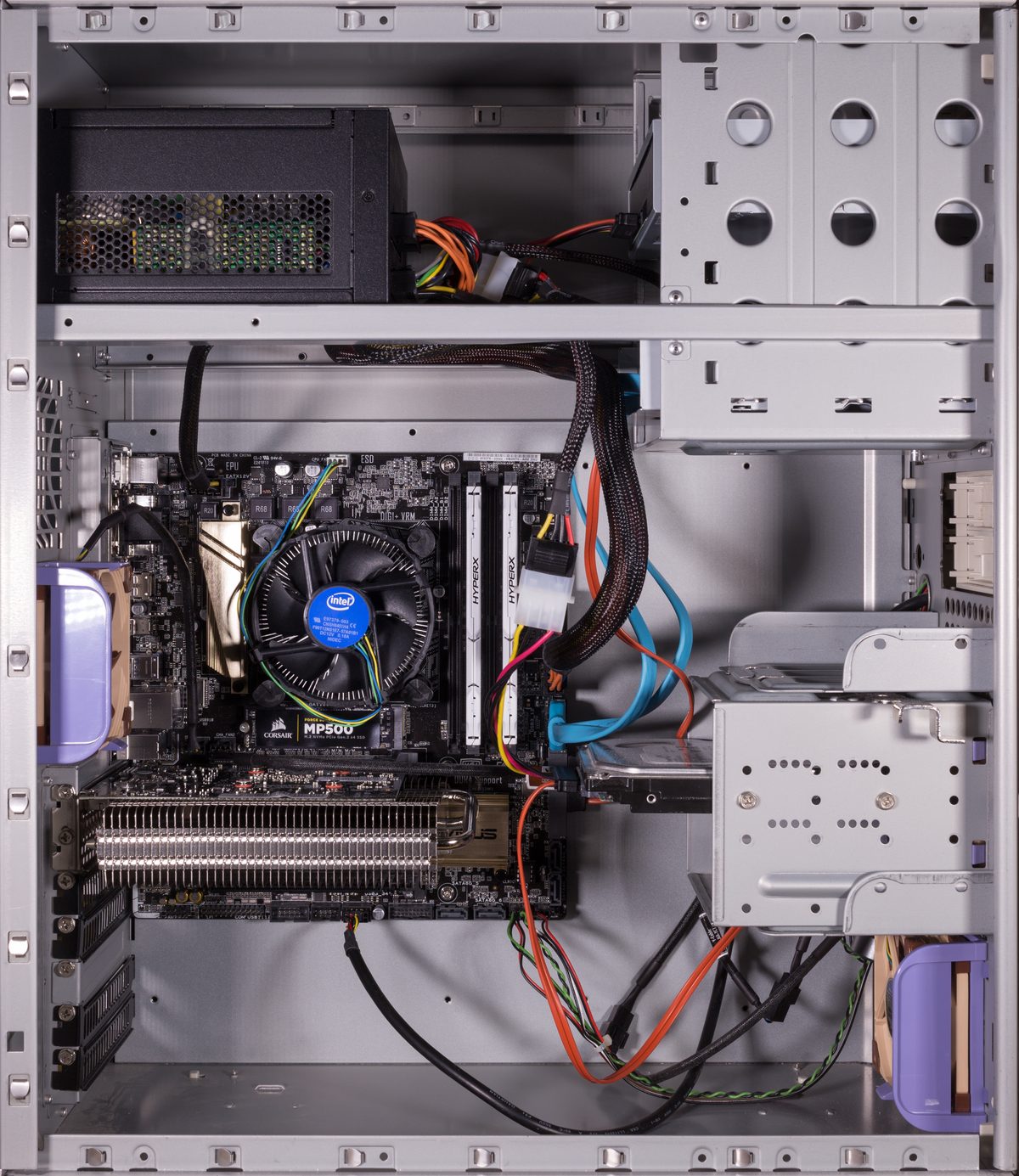
A homelab server running 24/7 has a different fan-curve problem than a gaming PC: it spends most of its life at low, steady load, with occasional spikes for a build, a backup, or a burst of container activity. Tuning the curve for that pattern, rather than the loud, reactive default most motherboards ship with, is what actually makes the difference between a box that’s always faintly audible and one that’s silent except when it genuinely needs to work.
The shape of a good curve
Keep fan speed low and steady at idle and light load, where a homelab server spends most of its time; there’s no reason for fans to spin up for background services doing essentially nothing. Let the curve ramp gradually as temperature climbs through the range where the system is doing real, sustained work, rather than jumping straight from quiet to loud. Reserve full fan speed for genuinely high temperatures, close to where thermal throttling would otherwise kick in, since that’s the one situation where noise stops being the priority.
Add a hysteresis buffer, a few degrees of temperature the system has to cross before the fan curve reacts, in both directions. Without it, a temperature hovering right at a curve’s threshold makes the fan constantly ramp up and back down, which is more noticeable and more annoying than running slightly louder continuously would be.
Setting it up
Most motherboard BIOS or UEFI firmware exposes manual PWM fan curve control, usually under a health or hardware-monitoring section. Disable the automatic profile, switch to manual control, and set target points for a handful of temperatures, low, medium, and high, letting the firmware interpolate between them. Enable whatever hysteresis or temperature-delay option is available, this is the setting that prevents the fan-hunting behavior described above.
Tuning for the actual workload
A box mostly running light development or documentation containers can run a genuinely conservative curve: low fan speed through most of its temperature range, since the load rarely pushes it high enough to need more. A production node running persistent workloads, database containers, or steady pod activity benefits from a curve that ramps a bit earlier and a bit faster, since it spends more time in the middle of its thermal range rather than sitting at idle. A box doing genuinely heavy, bursty work, batch inference, transcoding, backup jobs, warrants the most responsive curve of the three, since those bursts can climb temperature quickly and the fans need to keep pace rather than lag behind.
None of these is a fixed formula; they’re a starting point to tune from based on what the box actually spends its time doing.
Testing before trusting it
Measure baseline noise at idle and again under a sustained synthetic
load (stress-ng or a similar tool works well for this), ideally with
a real dB meter rather than a phone app, which tends to read
inconsistently. Watch actual temperatures during that test (lm-sensors
on Linux, or the platform’s own equivalent) to confirm the curve is
doing what it’s supposed to, not just assuming it from the BIOS settings
alone.
The real test is time, not a short synthetic run: let the curve run under the box’s actual workload for at least a few days, watching for thermal throttling in the system logs and confirming noise stays reasonable during whatever the heaviest routine task turns out to be. A curve that looks right on paper can still hunt or run hotter than expected once real, variable workloads replace a clean synthetic test.
Tools worth having
A PWM-capable fan hub or motherboard headers with real manual control
are the hardware side of this; not every board or fan supports fine
curve tuning. lm-sensors on Linux, or the equivalent monitoring tool
on another platform, is the software side for watching real
temperatures. Grafana paired with Prometheus is worth setting up for
anyone who wants to watch thermal and noise trends over time rather
than spot-checking occasionally, and stress-ng or a similar load
generator is the standard way to validate a curve under controlled
conditions before trusting it in production.
☕ Coffee Corner
Compiling, deploying, or waiting on a render? Here's what to brew while you wait.

🏠 Smart Home Picks
Same hobbyist care applied to your network and your front door.